
SketchUp
AI rendering for SketchUp — screenshot your model, render in seconds.
Drop in a screenshot from any 3D software — SketchUp, Blender, 3ds Max, Revit, Rhino, whatever you model in — and get a photorealistic render in 30 seconds. Interiors, building exteriors, or a product on a clean background — your exact model, same proportions, same layout, just lit, textured, and client-ready. No GPU. No render queue.
No credit card · 10 free renders · Result in 30 seconds
See real before & after examples ↓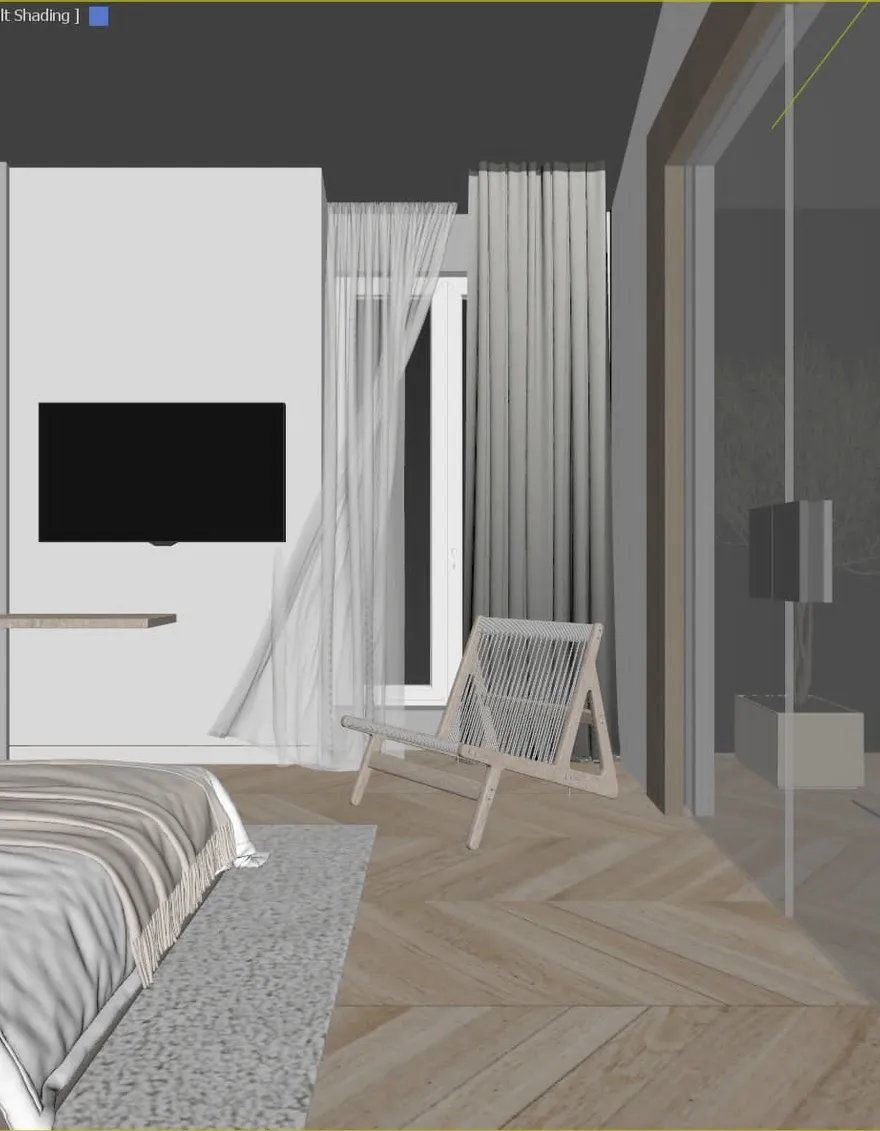
No 3D experience, no plugins, no exports — just a screenshot of your viewport.
Snap your viewport in SketchUp, Blender, 3ds Max, Revit, Rhino — or any other 3D app. No export, no 2D-graphic step — a normal screenshot is enough.
Drop the image in. The AI reads your geometry and composition directly from the screenshot.
Get a photorealistic render in ~30 seconds. Adjust style or lighting and re-run as many times as you need.
No credit card · 10 free renders · Result in 30 seconds
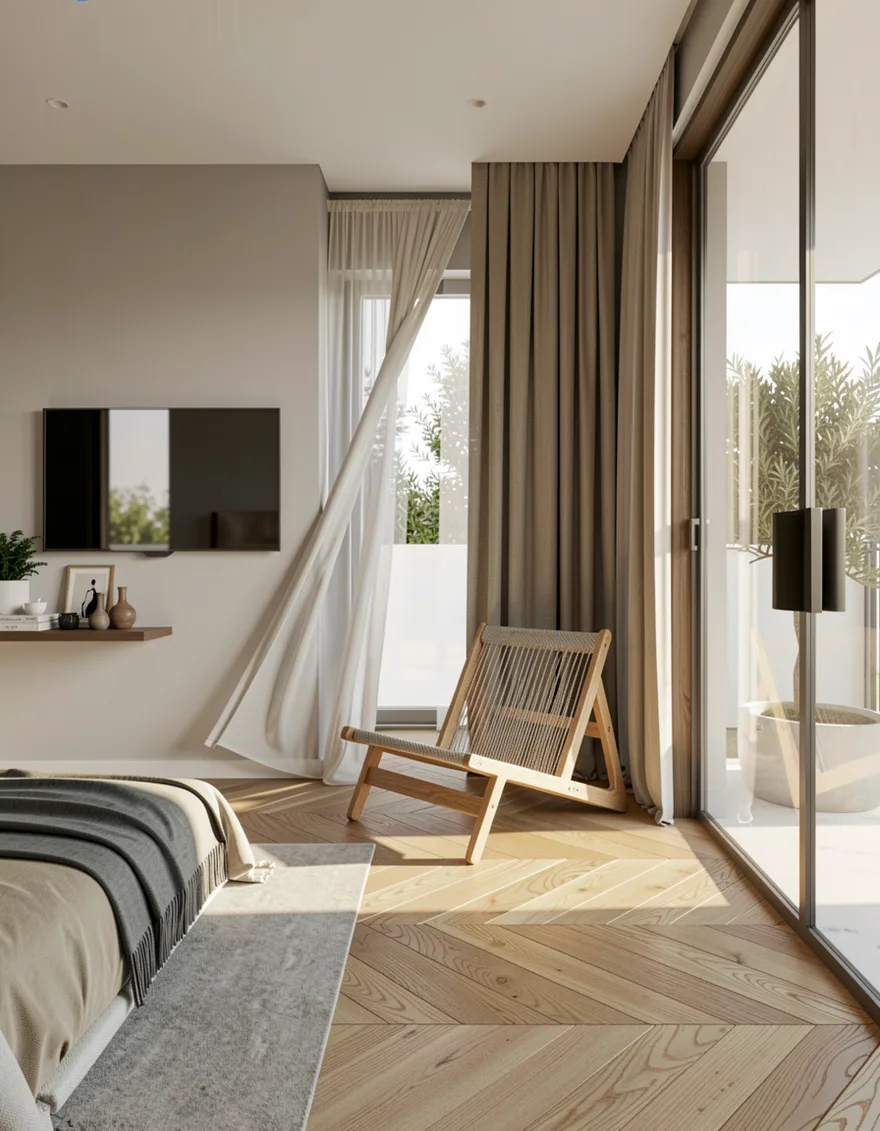
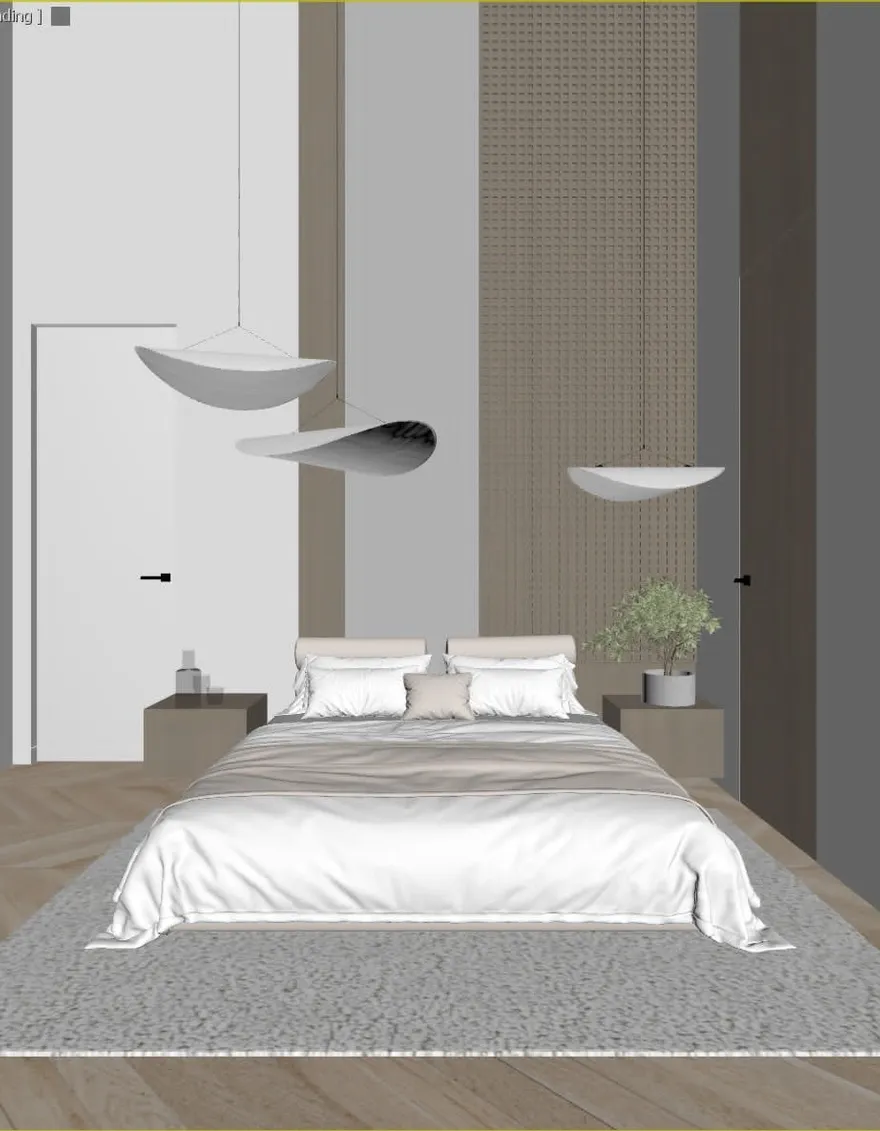
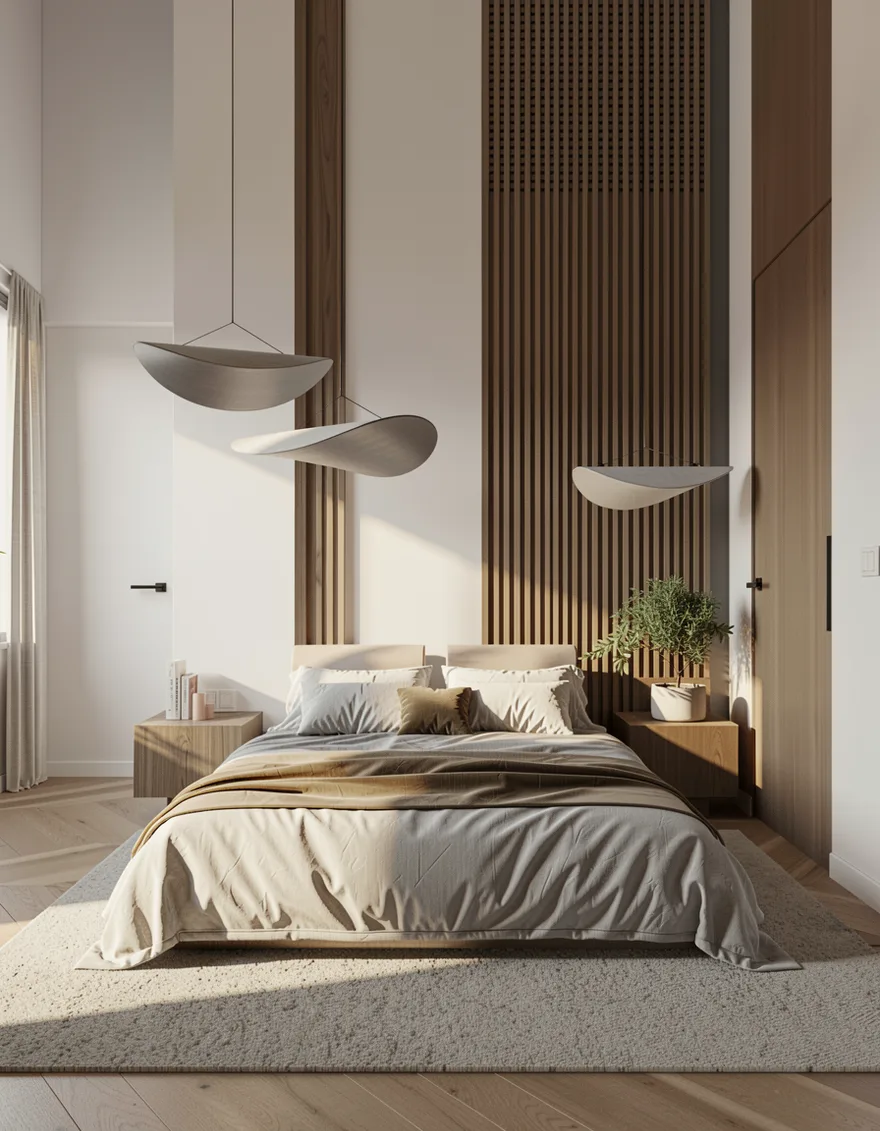
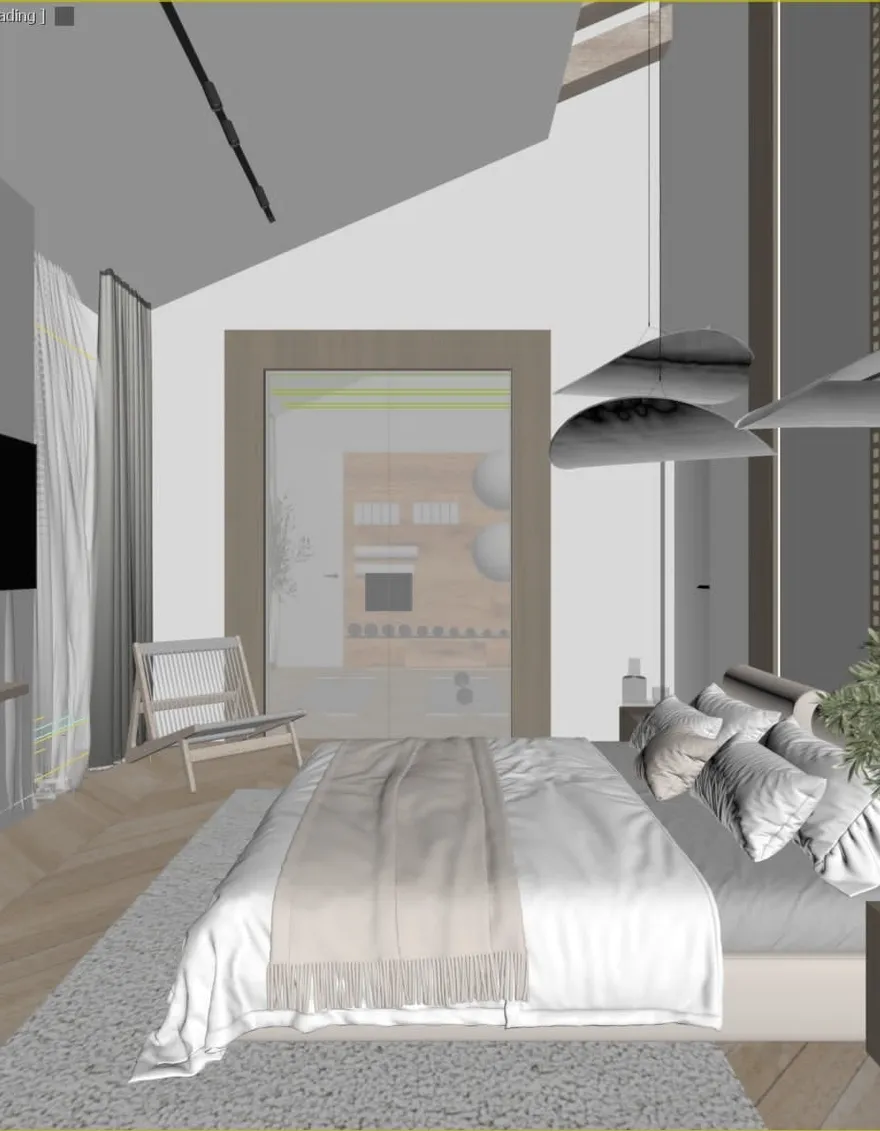
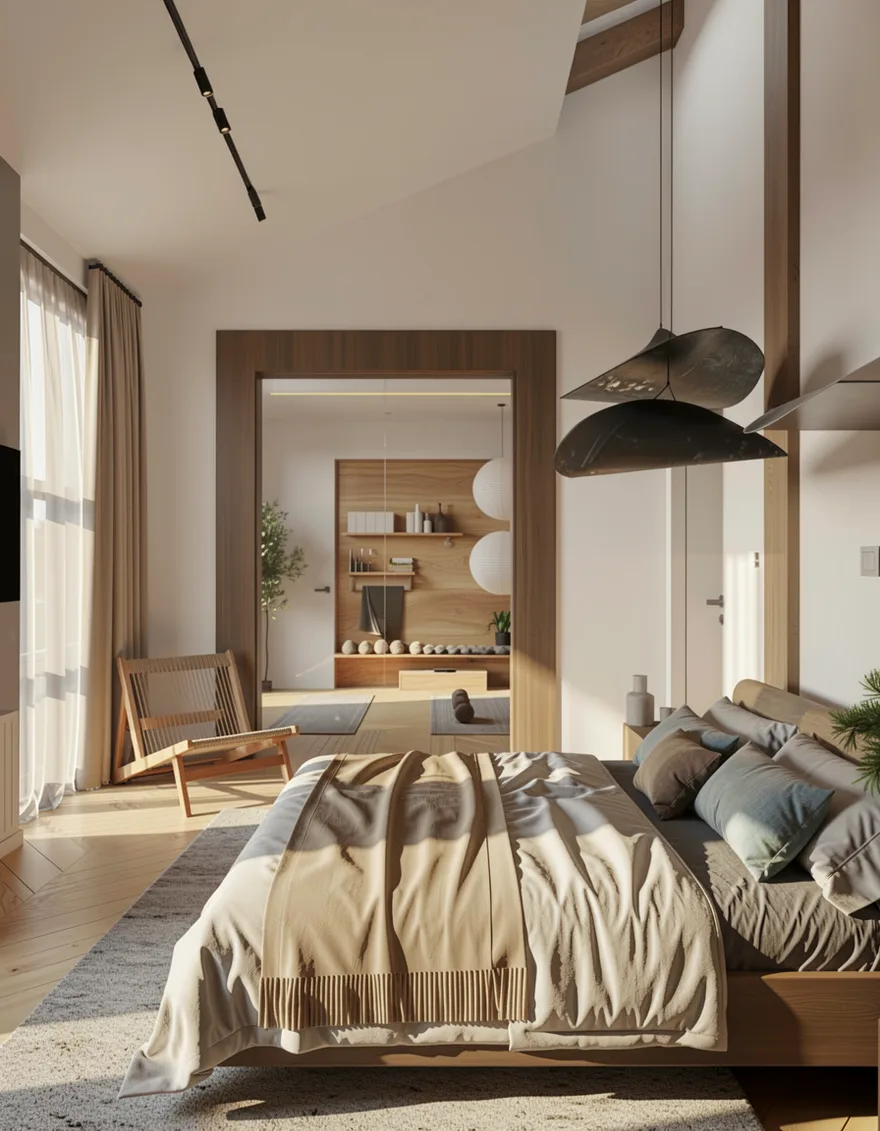
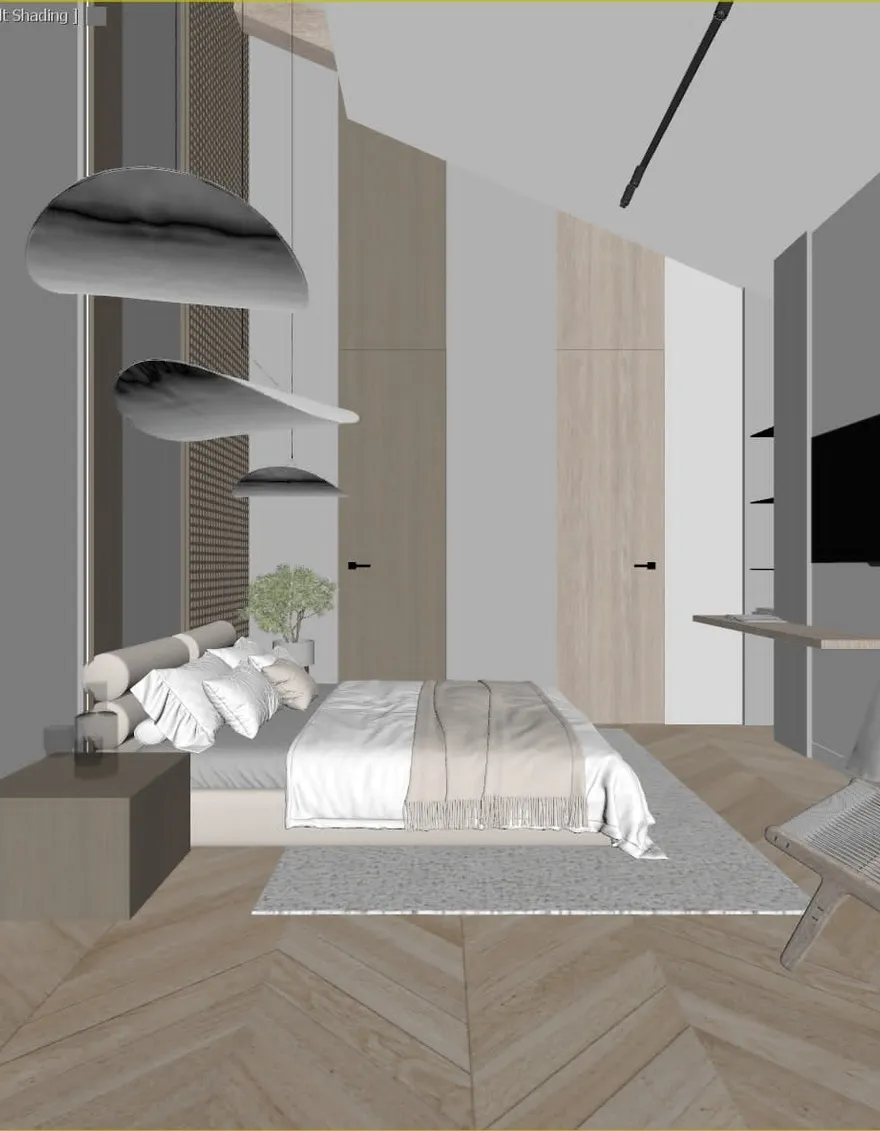
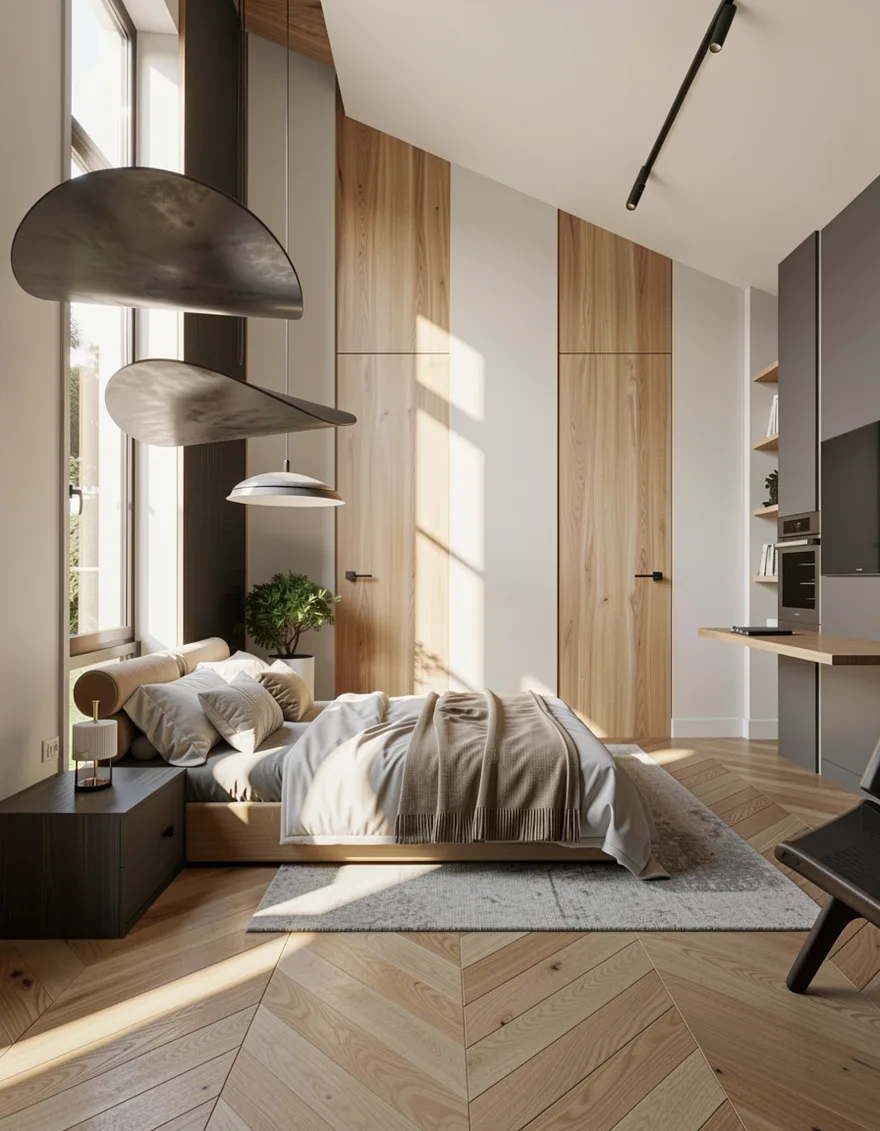
These are four raw 3D viewport screenshots of the same bedroom, rendered in a single session. Drag any slider — the geometry stays exactly as modeled, and the lighting and materials stay consistent from one angle to the next, so a whole project reads as one space.
No credit card · 10 free renders · Result in 30 seconds
Sketch-to-render AI guesses your building from a drawing — and often redraws it, moving walls, changing proportions, inventing details you never designed. FurniMesh starts from your actual 3D model, so the geometry you built stays exactly as it is. We add the light, materials and realism. We never touch the design.
See your own model rendered — geometry intact
No credit card · 10 free renders · Result in 30 seconds
V-Ray, Lumion and Enscape can tie up your GPU for minutes — sometimes hours — per frame, and only on a machine powerful enough to run them. FurniMesh renders in about 30 seconds in your browser, on any laptop. Iterate live in a client meeting instead of waiting overnight.
No credit card · 10 free renders · Result in 30 seconds
It renders from a plain viewport screenshot, so any 3D tool works — these are just the popular ones.
AI rendering for SketchUp — screenshot your model, render in seconds.

Blender AI render — skip the Cycles/EEVEE wait for quick client previews.
3ds Max render from a viewport grab — no V-Ray setup.

Render your Revit view with AI — no render engine required.

Rhino viewport to photorealistic render in one upload.
Cinema 4D, Archicad, Vectorworks, Maya — if it has a 3D viewport you can screenshot, FurniMesh can render it.
Using 3ds Max? Read the 3ds Max viewport settings guide for the cleanest screenshots and best renders.
Already have a flat photo instead of a 3D model? Turn a photo into a 3D model first, or convert between 3D formats.
Upload your own reference image — a client's moodboard, a material palette, or a photo of a finished room — or pick a preset, and every render in the session adopts that look. The mood and materials follow your reference; your model's proportions and layout never change. Control the look — keep the design.
Paint a mask over anything you want to change, describe the fix, and only that area re-renders — the rest of your render stays exactly as it was. Want something specific in that spot? Attach a reference image. Not right yet? Edit again, and again — each fix builds on the last.
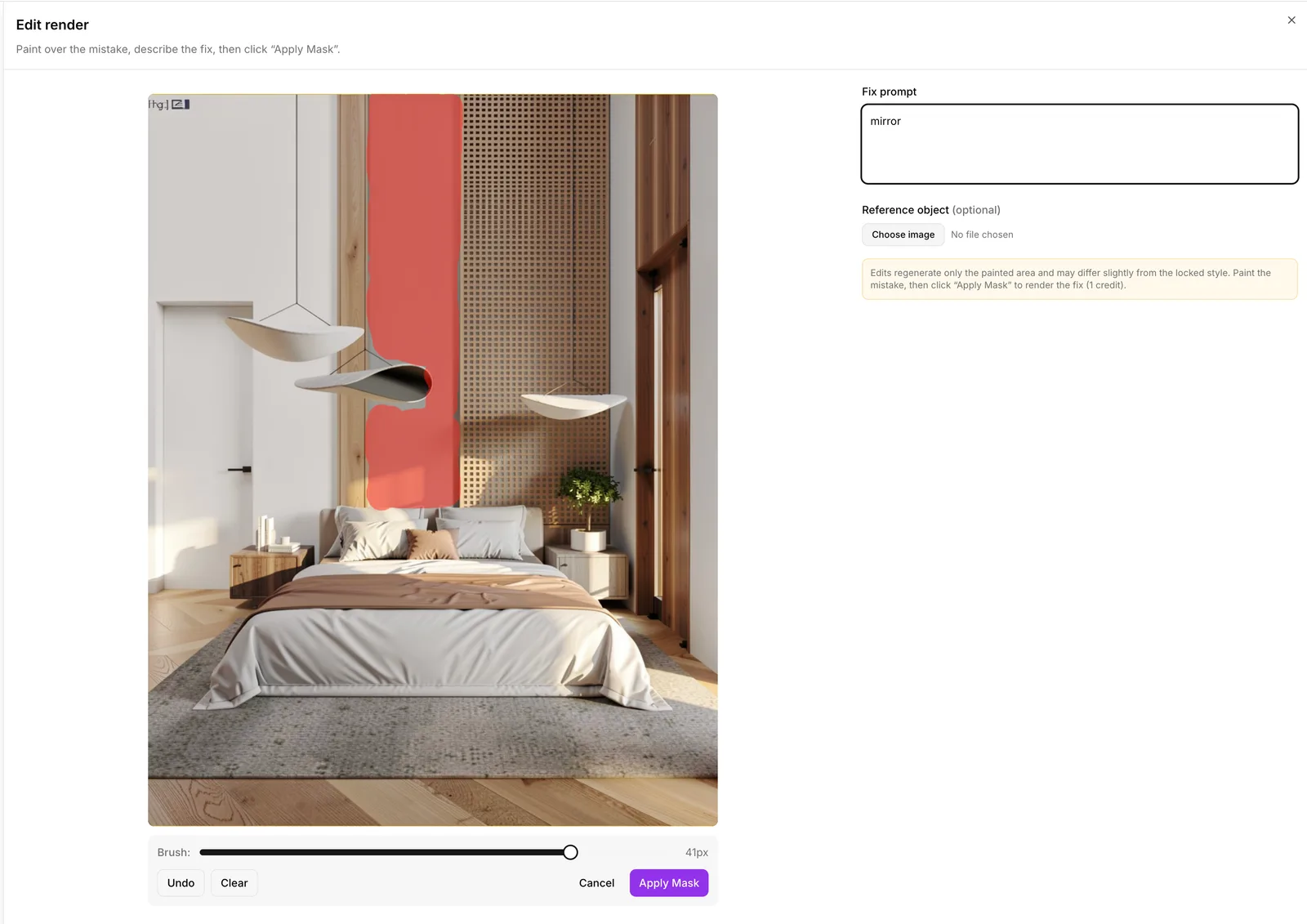
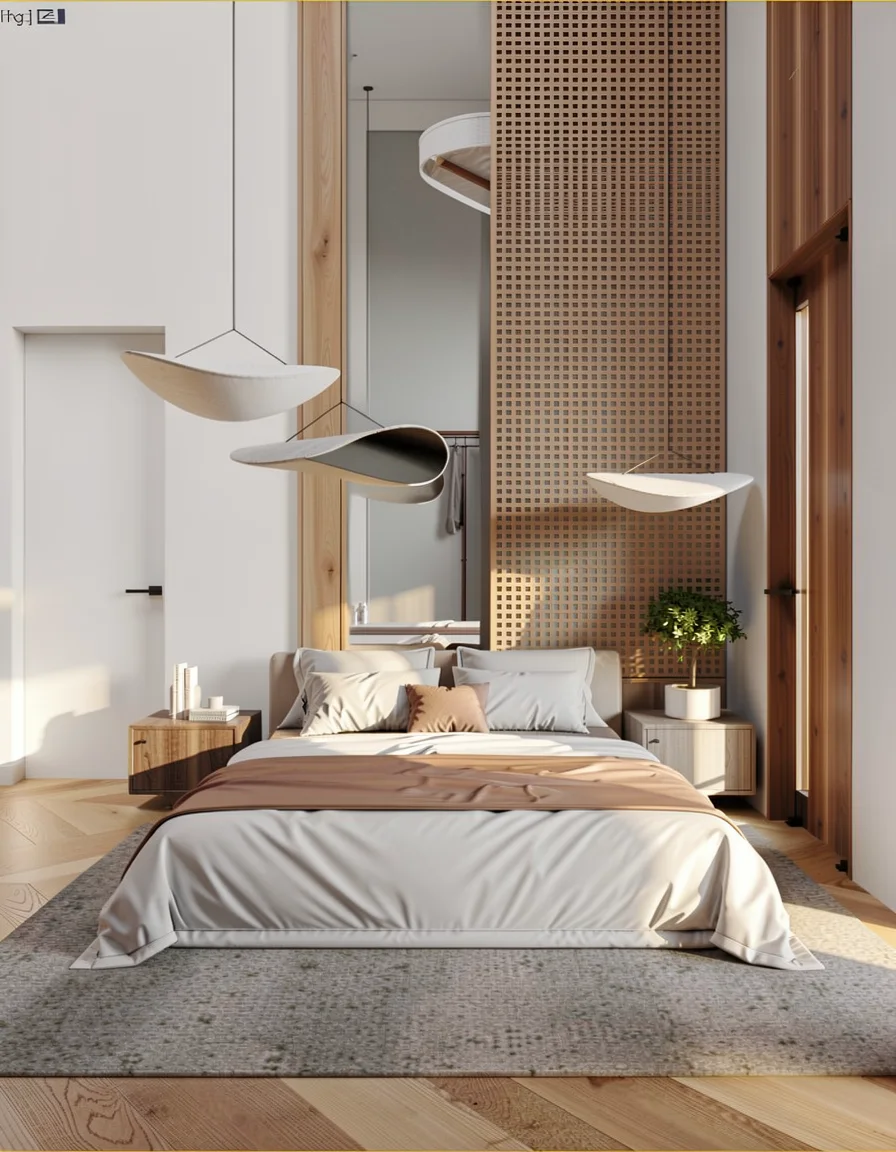
Paint over any area and type the fix. Only the masked region re-renders — the rest of the image stays pixel-identical.
Drop in a photo of a specific piece — a particular mirror, lamp, or chair — and the edit places exactly that object in the area you painted.
Chain edits one after another, each building on the last, until the render is exactly the way you want it.
No credit card · 10 free renders · Result in 30 seconds
The client approval loop
Show a client a realistic version in minutes, confirm you're moving in the right direction, then iterate — before you've sunk hours into a final render.
Get client sign-off and iterate on direction before sinking hours into a final render.
Spin up concept boards and material options a client can actually picture in the room.
Fast look-dev previews from a viewport grab before committing to final renders.
No credit card · 10 free renders · Result in 30 seconds
| FurniMesh AI Render | Render enginesV-Ray / Lumion / Enscape | Sketch-to-render AI | |
|---|---|---|---|
| Speed | ~30 seconds | Minutes–hours | Seconds |
| Geometry fidelity | Exact — preserved | Exact | Often altered |
| Hardware | Any laptop, browser | Powerful GPU | Browser |
| Learning curve | None | Steep | Low |
| Input | 3D screenshot | Full 3D scene setup | Hand sketch |
| Cost | Low subscription | High license + hardware | Subscription |
See full pricing on the pricing page.
No credit card · 10 free renders · Result in 30 seconds
Take a screenshot of your SketchUp viewport, upload it to FurniMesh, and the AI returns a photorealistic render in about 30 seconds. There's no export step and no render engine to install — a normal screenshot is all you need.
Yes. FurniMesh is built to render from a 3D viewport screenshot — SketchUp, Blender, 3ds Max, Revit, Rhino, or any other 3D software. You don't need to export a model or set up a scene.
No. Because FurniMesh renders from your actual 3D model, your proportions, layout and structure stay exactly as you built them. The AI adds lighting, materials and realism without altering the design.
About 30 seconds per render, in your browser, on any laptop — no GPU required.
SketchUp, Blender, 3ds Max, Revit and Rhino — and any other 3D software you can take a viewport screenshot from.
All three. Pick a view type before you render: interior for rooms, exterior for building facades and landscapes, or product to render a single furniture piece or object on a clean neutral background. Each mode uses lighting suited to the scene — room light, sky and daylight, or studio backdrops — and your geometry is preserved either way.
Yes, for fast concept and client-approval renders. Instead of tying up your GPU for minutes per frame, FurniMesh produces a photorealistic render in about 30 seconds from a screenshot.
Yes. Upload your own reference image or choose a preset to match a moodboard, material palette or house style, and every render in the session keeps that look — while your model's geometry stays unchanged.
Yes. Open the render in the editor, paint a mask over the area you want to change, and describe the fix — only that region re-renders while the rest of the image stays exactly as it was. You can keep editing, one fix after another, until it's right.
Yes. Alongside your fix prompt you can upload a reference image of a specific object — a particular mirror, lamp or chair — and the edit places that exact object into the masked area.
Yes — 10 free renders, no credit card required.
Every image below started as a raw 3D viewport screenshot. Click any example to see the source, the AI render, and the exact prompt the engine used.