
Displaying 3D models in your website
Learn how to embed FurniMesh 3D models in your website with AR functionality for mobile users.
FurniMesh makes it easy to display your 3D models directly on your website. Our viewer includes AR functionality, allowing your customers to view models in their own space when browsing from mobile devices.
Embedding 3D Models with Iframe
You can easily embed any 3D model generated by FurniMesh into your website using our iframe code. This allows your customers to interact with the 3D model directly on your site.
Copy and paste this code into your website to display the 3D model:
<iframe
  src="https://furnimesh.com/iframe?glb=https://storage.googleapis.com/furnimesh-3d/
      gbl-files/xSUhtOSGZ2DWgnwpU2kya.glb&userId="
  width="100%"
  height="100%"
  frameborder="0"
  allowfullscreen
></iframe>Preview
The embedded 3D model will look like this on your website:
Note: The FurniMesh logo is displayed in the bottom left corner for non-subscribers. If you have an active subscription, the logo will not be visible when embedding models on your website.
Customizing the Iframe
The iframe code can be modified to fit your website's styles and layout:
- The
widthandheightattributes are set to100%by default, which means the iframe will automatically fit the size of its containing div. - You can adjust these values or add CSS classes to control the size and appearance of the embedded viewer.
- For best results, place the iframe inside a container with defined dimensions, such as:
<div style="width: 600px; height: 400px;">
  <iframe
    src="https://furnimesh.com/iframe?glb=https://storage.googleapis.com/furnimesh-3d/
      gbl-files/xSUhtOSGZ2DWgnwpU2kya.glb&userId="
    width="100%"
    height="100%"
    frameborder="0"
    allowfullscreen
  ></iframe>
</div>This ensures the 3D model viewer will properly adapt to your website's layout while maintaining the correct aspect ratio.
Using the Model Card Component
Every 3D model in your library includes a "Display in your website" button that provides the iframe code needed to embed the model.
How to access the iframe code:
- Navigate to any 3D model in your library
- Click on the "Display in your website" button on the model card
- A modal will appear with the iframe code
- Click the "Copy" button to copy the code
- Paste the code into your website's HTML
The iframe code is automatically generated for each model, ensuring that you always have the correct URL for embedding.
AR Functionality for Mobile Users
When customers view your embedded 3D models on their mobile devices, they can use AR (Augmented Reality) to see how the furniture would look in their own space. The viewer has a dedicated AR button in the right-hand corner that enables this functionality.
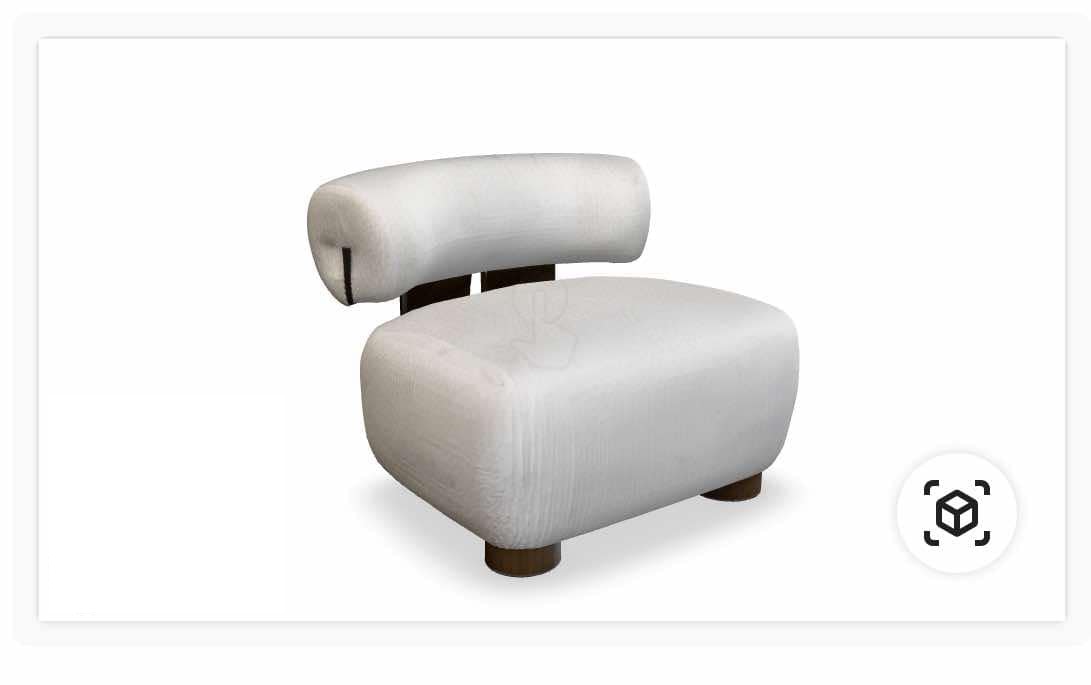
The AR button appears in the corner of the viewer on mobile devices
When customers tap this button, they can place the 3D model in their real environment. This powerful feature helps customers make more confident purchasing decisions.
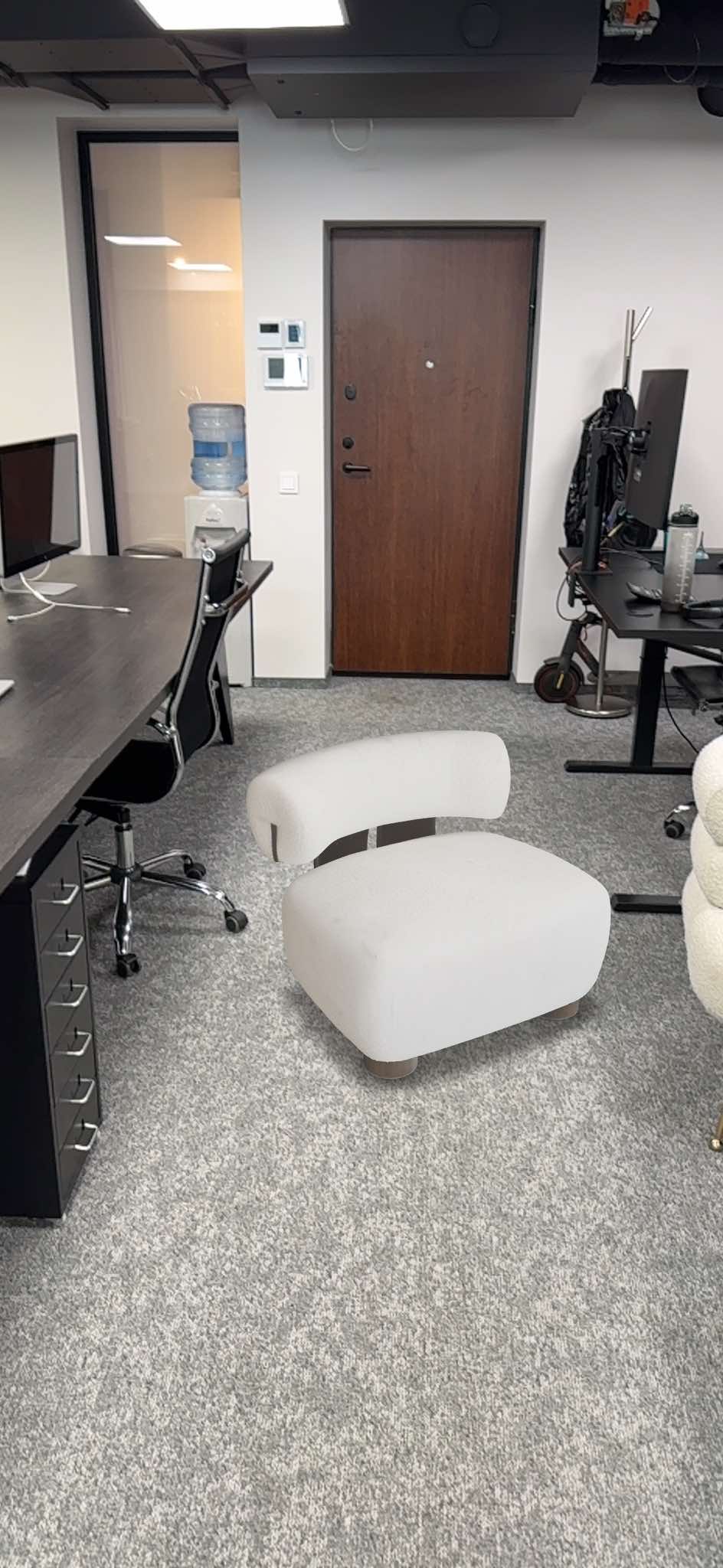
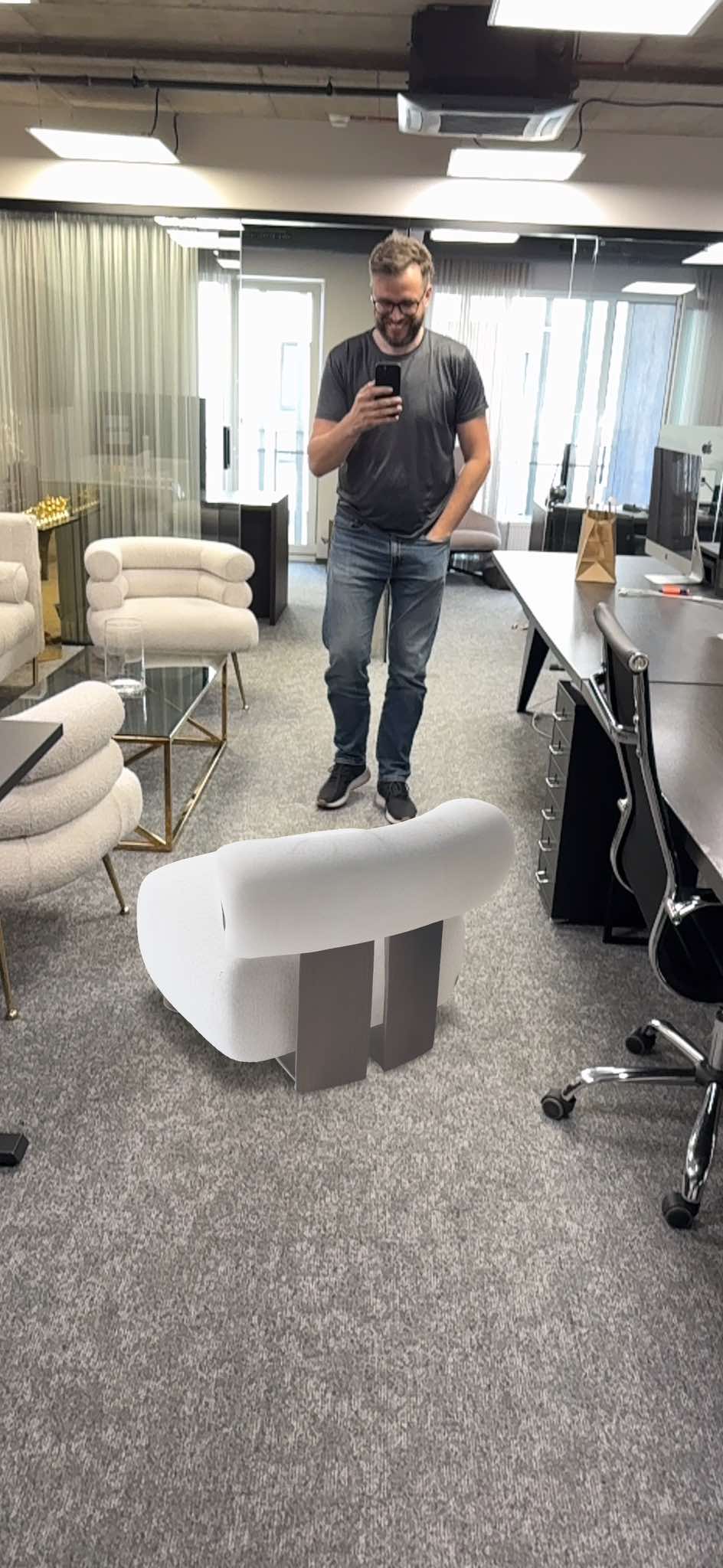
Benefits of AR for your customers:
- Visualize products in their actual space before purchasing
- Understand the true scale and dimensions of furniture
- Reduce returns by ensuring products fit and match their decor
- Enhance the shopping experience with interactive technology